
I recently made a mod for Dispatch (probably my GOTY - it's really good)
The mod (like maybe most of my mods?) is a silly one - one of the characters in the game, Sonar, is voiced by none other than MoistCr1Tikal
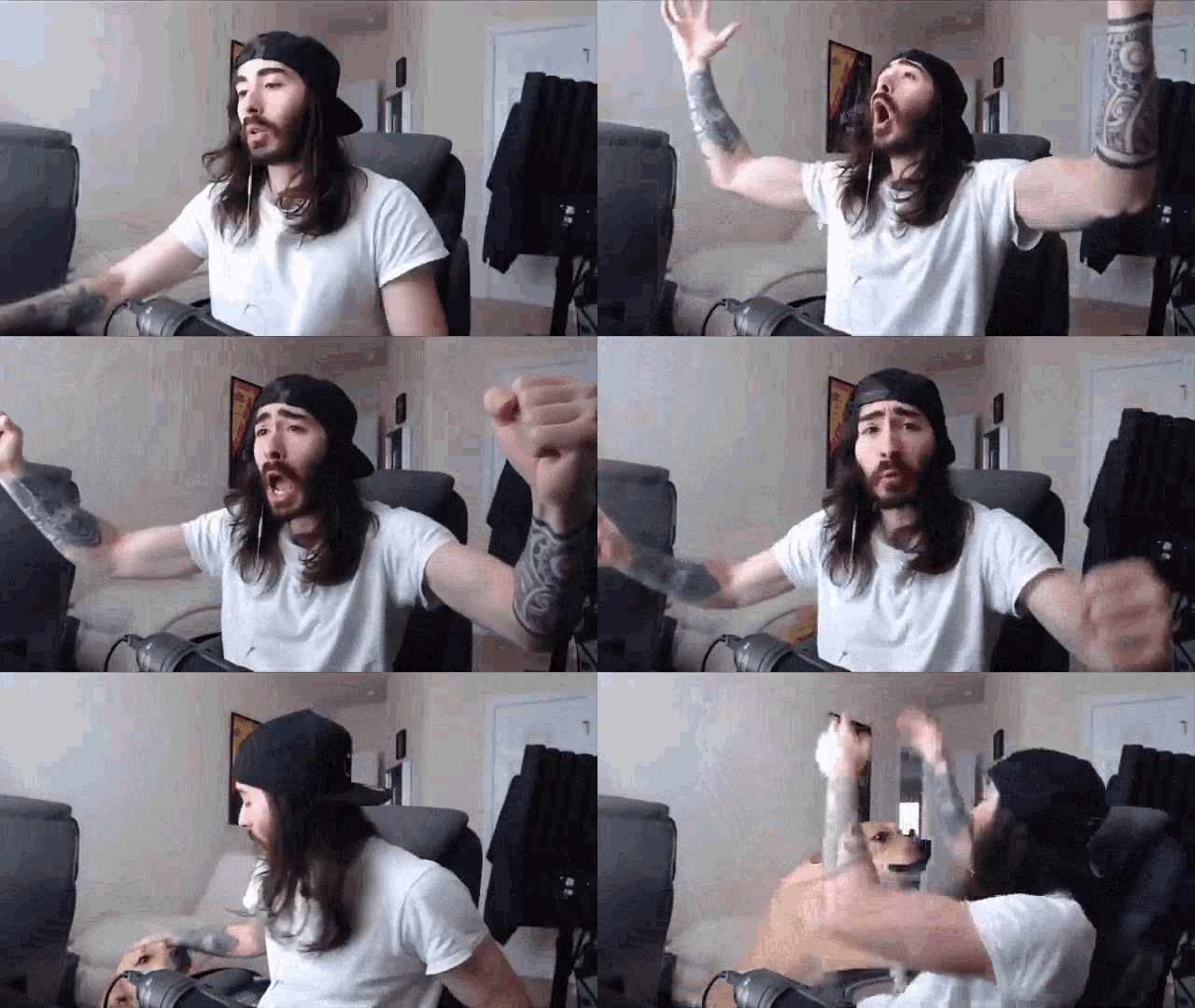
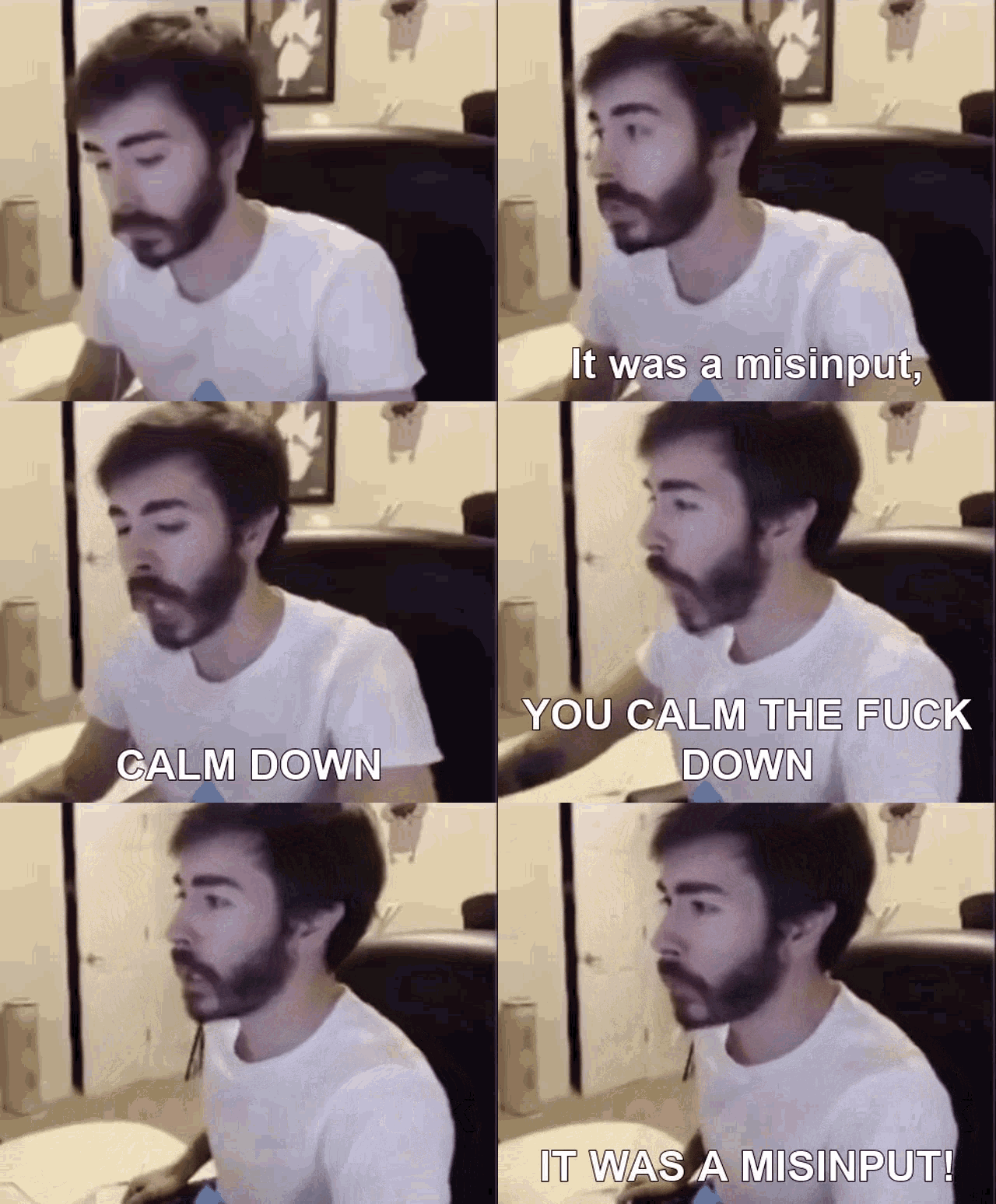
So understandably the modding potential is insane. For the mod I chose a specific moment in one of the episodes (without giving away too much spoilers), where Sonar sabotages a teammate which reminded me of the iconic "Misinput"
I've been messing with Unreal for months as a game dev, but first time as a modder. Dispatch is built with Unreal 4, and unlike Cyberpunk modding - there is no real single mod editor like Wolvenkit for it - it's a bit distributed for reasons I think I understand (there are SO many UE games). Regardless - apart from having to use 4 or 5 tools, the tools themselves are solid and do what they do well. I decided to write this down for future me and anyone else looking to mod Dispatch.
I obviously don't know everything and given this is my first UE mod - I'm sure there are better ways to do things (I really just rushed through most of this)
My usual modding disclaimer: This guide assumes you own the game. Support Adhoc Studio - they made something really good.
This guide covers the workflow for replacing Voice Over (VO) and Subtitles in Dispatch. The specific example used here modifies a line for the character Sonar in Episode 103, but the logic applies to all episodes.
The Toolkit
- UE4 AES Key Extracting Guide: Required to get the encryption key.
- FModel: Asset explorer.
- Fmod Bank Tools: For unpacking/repacking
.bankaudio files. - UnrealLocresEditor: GUI tool to edit binary localization files.
- repak: Command-line tool to pack mods.
- Dispatch Debug Menu: Essential. Allows skipping cinematics and jumping to specific shifts.
1. Setup & Exploration
FModel Configuration
- Open FModel.
- Add Game: Point the directory to
...\Steam\steamapps\common\Dispatch\Dispatch. - Set Encryption: In Settings, paste the AES key (extracted using the guide above).
- Load: FModel will now list the file contents.
Understanding the PAK Structure
Dispatch organizes data sequentially. Knowing this saves search time:
- pakchunk0-1: Core/Shared assets.
- pakchunk2: Episode 1 Data (Localization, Assets).
- pakchunk3: Episode 1 Cinematics (
.webm). - pakchunk4: Episode 2 Data.
- pakchunk5: Episode 2 Cinematics.
- (Pattern continues: even numbers are Data, odd numbers are Movies).
2. Asset Identification
Do not listen to every audio file blindly. Match the Script ID to the Audio ID.
- Search: In FModel, search the relevant
pakchunk(e.g., chunk 2/3 for Ep 1, or chunk 6/7 for Ep 3) for the dialogue line name (e.g.,Line_Sonar_). - Extract ID: Note the unique suffix in the filename (e.g.,
Line_Sonar_bfc02e-> ID: bfc02e). - Match: This ID corresponds to the
.wavfilename inside the FMOD bank.
Quick-Search Script (PowerShell)
Save as find_asset.ps1 and run to quickly find assets in encrypted PAKs without extracting everything:
param($Pak, $AesKey, $Query)
.\repak.exe --aes-key $AesKey list $Pak | Select-String -SimpleMatch $Query
3. Replacing Audio
Dispatch loads audio from loose bank files on disk (banks aren't inside paks). You do not need repak for the VOs.
- Locate: Go to
Dispatch\Content\FMOD\Desktop. - Select Bank: Find the bank for your Episode (e.g.,
Shift03AVO.bankfor Ep 103). - Extract: Use Fmod Bank Tools -> "Extract".
- Swap:
- Open the
wavfolder. - Replace the file matching your ID (e.g.,
bfc02e.wav). - Requirement: Match the sample rate. Matching duration isn't a hard requirement, but it's recommended (more due to the subtitle timing, which we aren't modifying)
- Open the
- Rebuild: Use Fmod Bank Tools -> "Rebuild".
- Install: Overwrite the
.bankfile in the game directory with your new one.
4. Replacing Subtitles
Subtitles are stored in .locres files.
-
Export: In FModel, find the localization file (e.g.,
pakchunk2->Dispatch/Content/Localization/103/en/103.locres). Right-click -> "Export Raw Data". -
Edit:
- Open UnrealLocresEditor.
- Load the exported
.locresfile. - Search for your Line ID (e.g.,
1FC02E62...) and change the text. - Save.
-
Pack:
- Create a folder
MyMod. - Recreate the exact game path inside:
MyMod\Dispatch\Content\Localization\103\en\. - Place the modified
.locresinside. - Run repak:
.\repak.exe pack "MyMod" "Dispatch_Mod_ZZ_Subs_P.pak"
- Create a folder
-
Install: Place the
.pakfile inDispatch\Content\Paks.
5. Testing
Launch the game. Use the Dispatch Debug Menu mod to help speed up testing and jump directly to the Shift/Episode you modified.
And that's it! You can use the same principle to replace any VO or subtitle (or for that matter, any asset) in the game. I want to also try modding Blueprints but that's for another day. Happy modding!
